
Note: Need to deploy and manage a large quantity of Ditto receivers? Check mass deployment options.
Step 1
Download the Ditto tvOS Receiver app from the App Store on your Apple TV.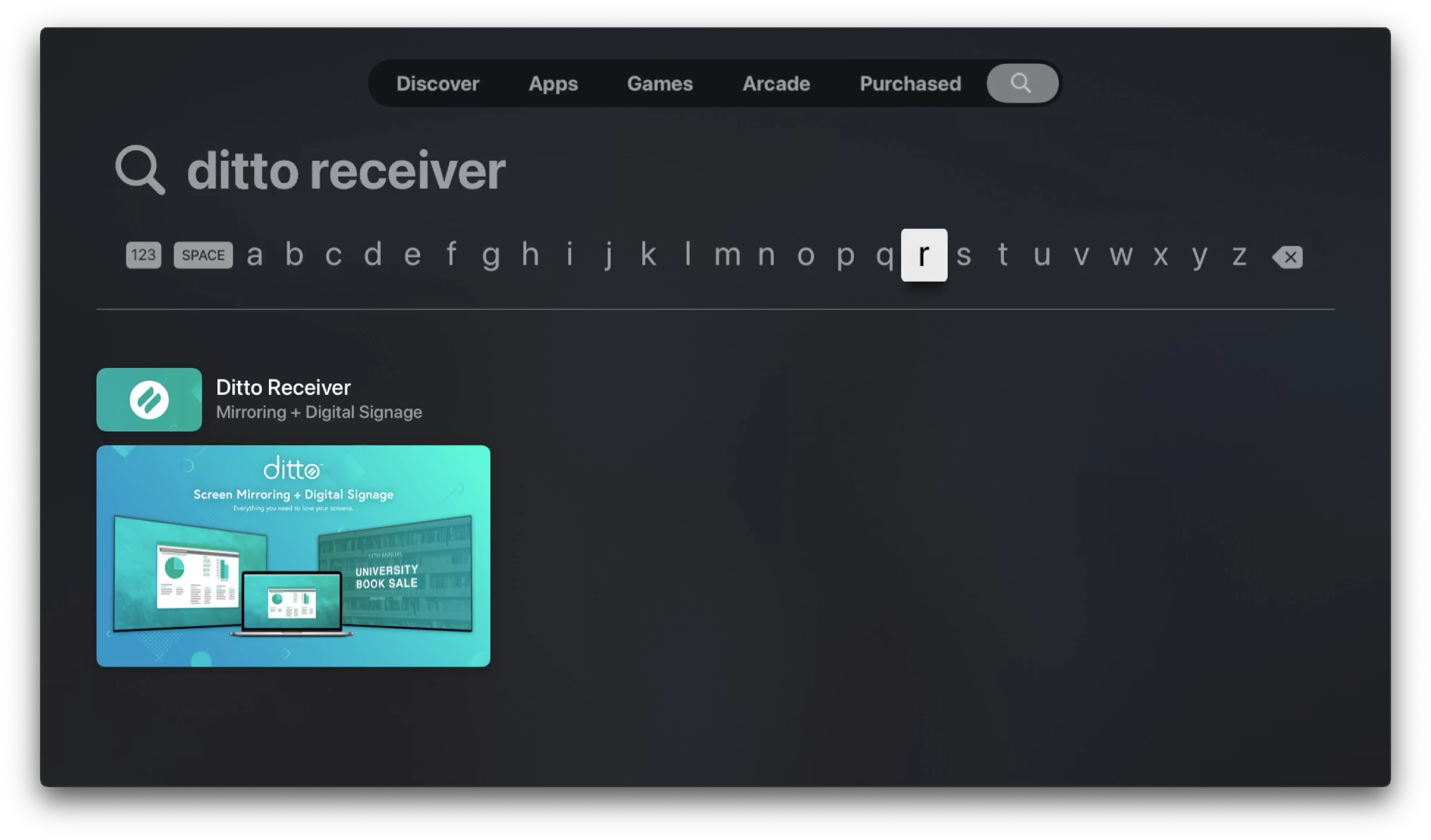
Step 2
Open the Ditto tvOS Receiver app. You will see a pairing code. 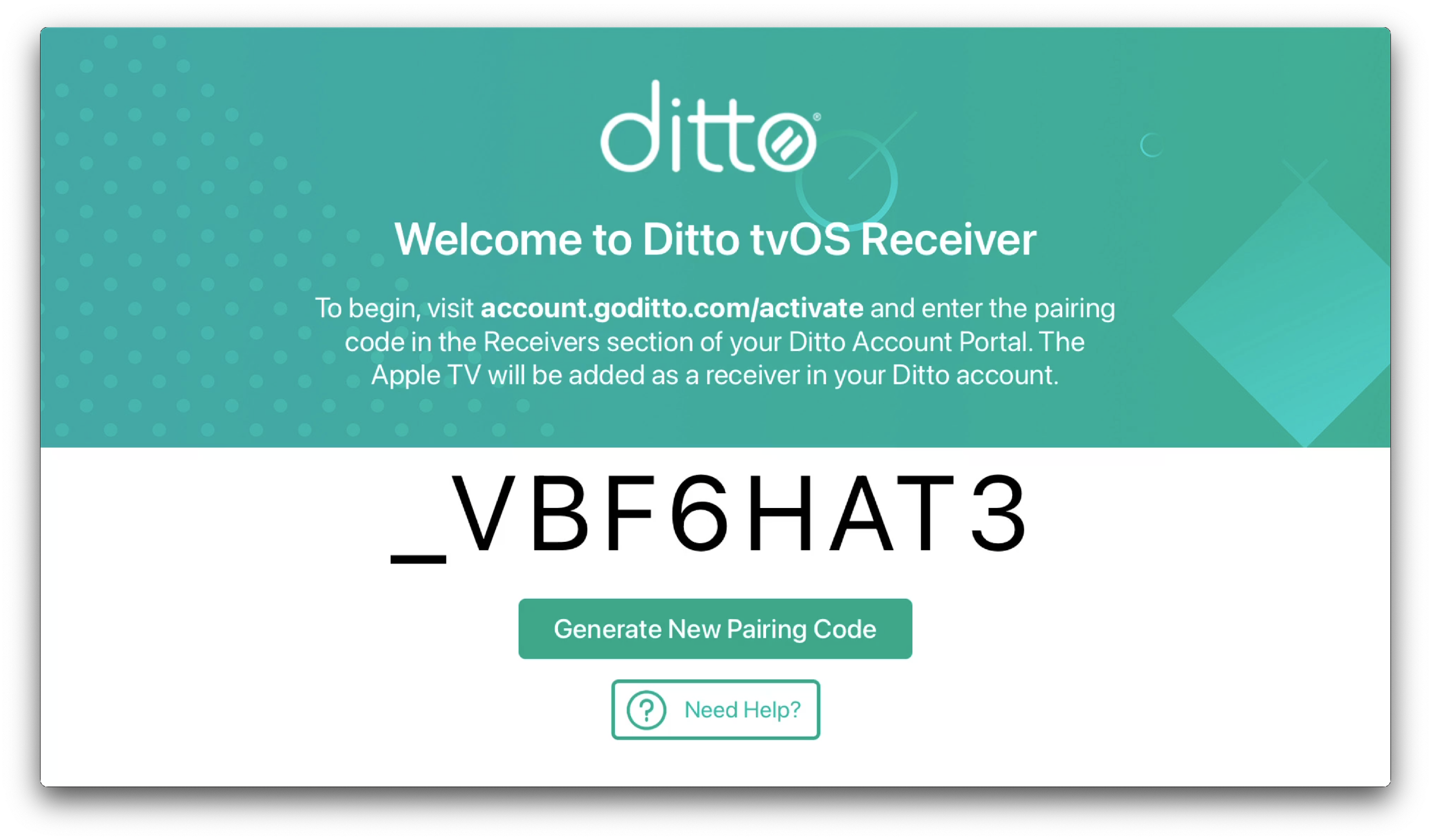
Step 3
Log in to your Ditto Account Portal, click on the "Receivers" tab, and click "New Receiver" (or “Add Your First Receiver” if you haven’t added a receiver yet).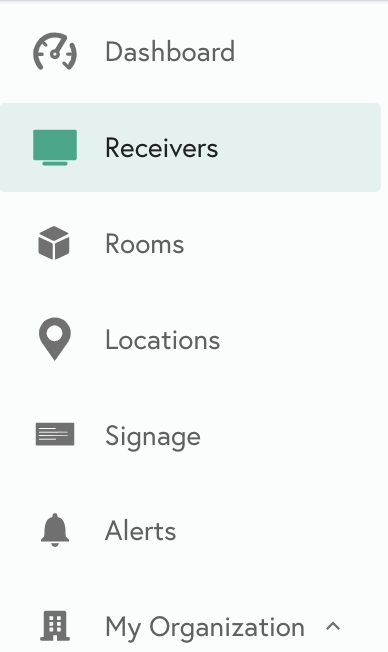

Step 4
Enter the pairing code displayed on the Apple TV and click "Pair Receiver." 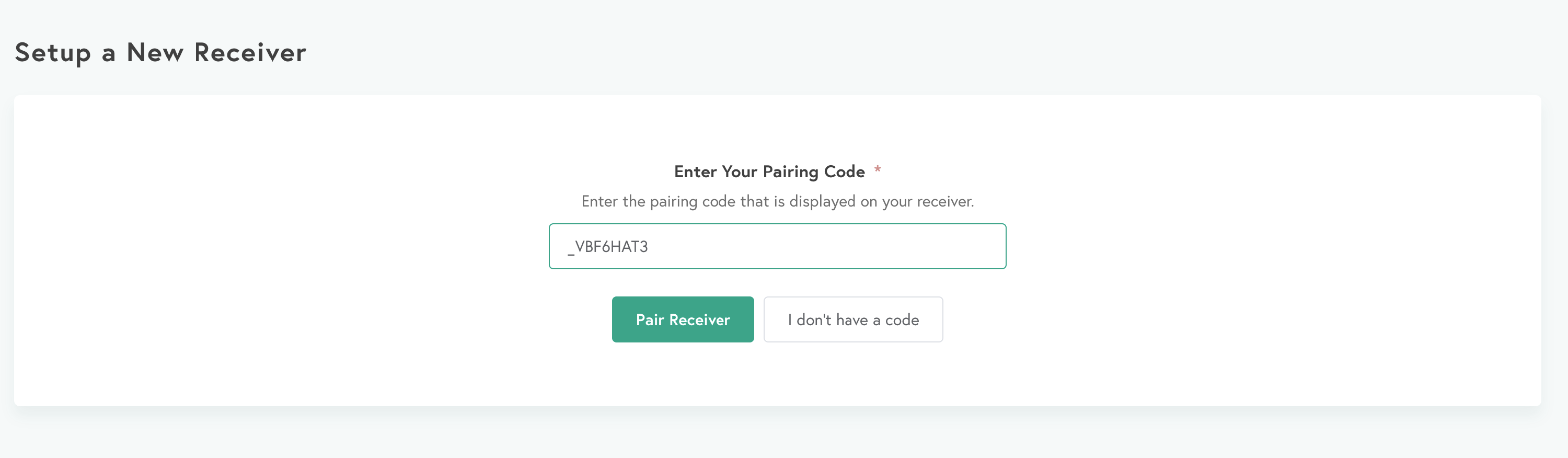
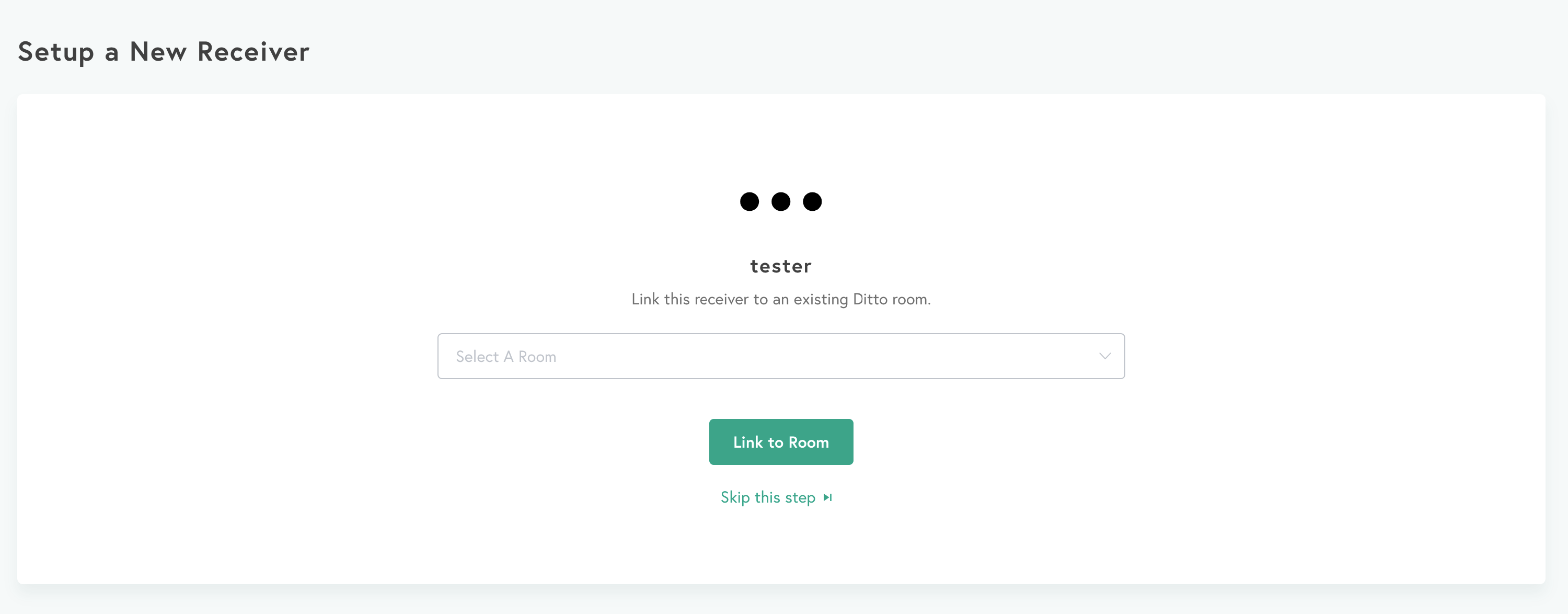
Step 5
That's it! Your Apple TV 4K or Apple TV HD will be paired to your Ditto account as a receiver. Next, add the receiver to a room. Learn how to set up rooms.
Note:
You can create as many Ditto receivers as you want in the Ditto Account Portal. A receiver is not active until it is paired with a room. Active receivers are what count toward your Ditto subscription total.