
Overview:
This guide explains how to add YouTube videos as digital signage with Ditto.
YouTube signage lets you display standard YouTube videos or YouTube Live streams on your Ditto receivers.
This feature is only available on Ditto Elite plans. Ditto Basic and Premium plans can be upgraded in the Billing section of your Ditto Account Portal.
Add a YouTube Signage item:
Step 1: Open your signage list
-
Log in to the Ditto Account Portal.
-
Click the Signage tab dropdown and select Lists.
-
Under Signage Lists, select the list where you want to add the YouTube video.
- Create a signage list if you do not already have one.
Step 2: Create a new YouTube URL item
-
Select the Signage Items tab.
-
Click New Item.
-
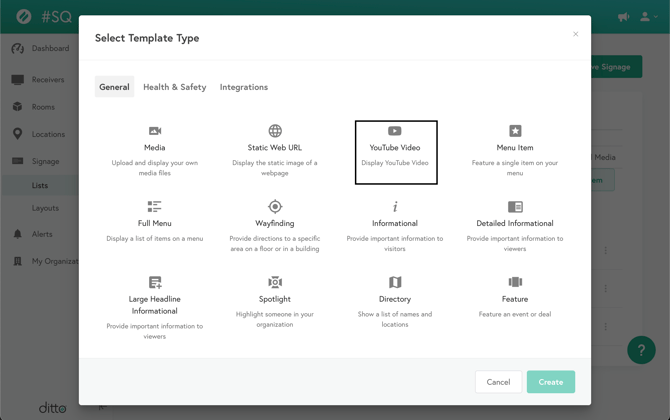
In the template chooser, select YouTube URL.
-
Click Create.
Step 3: Enter the YouTube URL
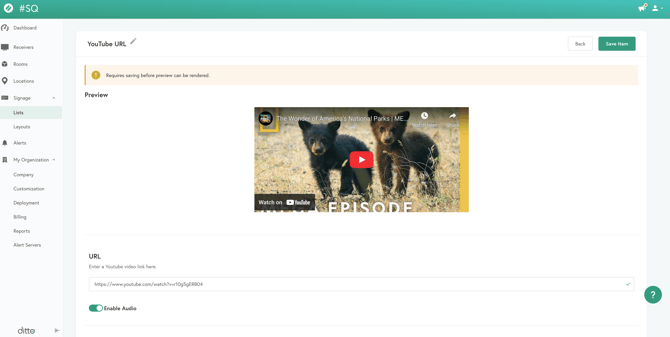
- In the URL field, enter the YouTube link you want to use as signage.
- The field is populated with a default video.

- The field is populated with a default video.
- After you paste or update the URL, the Preview area updates to show the thumbnail for the selected YouTube video.
- Confirm the preview looks correct, then click Save Item.
Your YouTube signage item is now saved to the list.
Configure loop and duration:
You can control how long the YouTube video plays on screen, just like other video media items.
Step 1: Adjust loop settings
-
Navigate back to the Signage Items tab.
- You can either select the Back button or follow steps 1.2-1.3 of the Add a YouTube Signage item section.
-
Locate your new YouTube URL item in the list.
-
Open the item options and enable Loop if you want the video to repeat.
-
Select Play until end to loop the full length of the video.
-

Step 2: Set a specific duration (optional)
-
From the same item options, open the Duration settings.
-
Turn off Play until end if you want to limit the on-screen time.
-
Enter the desired duration (for example, 00:02:00 for two minutes), then save.

Using a specific duration is especially important for YouTube Live videos to ensure signage reliably returns to your regular content when the scheduled time ends.
Additional Information:
-
Supported video types
-
You can use both standard YouTube videos and YouTube Live videos as signage items.
-
-
YouTube Live
-
If a signage list contains a YouTube Live video, no other signage items will play while the live video is streaming, unless you configure a specific duration for the live item.
-
When the live video ends and Ditto is notified that the stream has stopped, signage resumes as normal and the receiver returns to the next item in the list.
-
Not all YouTube Live streams send reliable start/stop information. In some cases, the receiver may:
-
Freeze on the last frame of the video, or
-
Display a black screen if the live video has been removed or the API does not report that the stream ended.
-
-
Because of this, we strongly recommend scheduling YouTube Live items with a specific duration instead of relying on the stream to end.
-
-
Recommended use for announcements
-
For time-bound announcements (for example, a live event or broadcast), create a takeover list that contains the YouTube Live item.
-
Schedule that takeover list for the duration of the live stream.
-
When the takeover schedule ends, Ditto automatically returns to your normal signage.
-
-
Playback options
-
YouTube signage items can:
-
Play on loop, or
-
Play for a specific duration, similar to uploaded video media items.
-
-
-
Removing items while playing
-
If a YouTube signage item is removed from a list while it is actively playing on a receiver, the receiver will stop the video and move to the next available signage item. It will not wait for the video to finish.
-
-
Subtitles
-
YouTube subtitles and captions do not display on Ditto receivers when using YouTube signage.
-