
Use these steps to screen mirror an iPhone that is capable of running iOS 27, iOS 26 or iOS 18, including iPhone 18, iPhone 17, iPhone Air, iPhone 16, iPhone 15, iPhone 14, iPhone 13, iPhone 12, iPhone 11, iPhone XS and iPhone XR. The same steps also work on iPhone X running iOS 16.
Using an older iPhone that supports AirPlay mirroring? You may need to swipe up to access Control Center in Step 2 instead of swiping down.
Follow the steps below to connect your iPhone to Reflector using AirPlay:
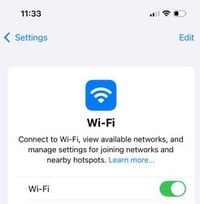
Step 1 – Connect to network
Make sure your iPhone and the device you want to mirror to, such as a Mac or Windows computer running Reflector or an AirPlay-enabled TV, are connected to the same wifi network.
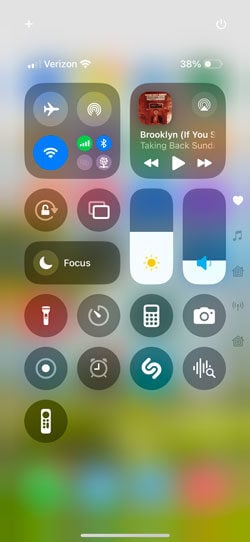
Step 2 – Open Control Center
Swipe down from the top-right corner of your iPhone screen to reveal the Control Center.
Step 3 – Tap the screen mirroring icon
Select the screen mirroring icon. It’s the icon with two overlapping rectangles. It may also be labeled as “Screen Mirroring” depending on the layout of your Control Center.
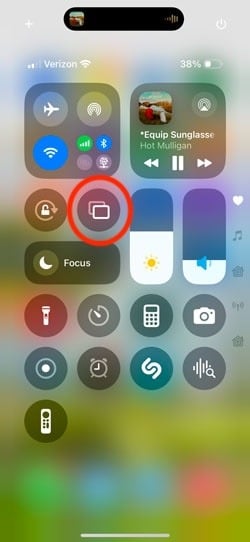
Tip: You can edit and rearrange the iPhone Control Center layout to make your most used controls more easily accessible. Long-press a space in the Control Center to bring up customization options.
Step 4 – Select your destination
A list of available AirPlay receivers on your network will appear. Select the device you want to mirror to. Approve permissions if prompted.
Note for Mac users: If you are trying to connect to Reflector on Mac, you may see your Mac listed twice. One is for Reflector. The other is macOS's built-in AirPlay Receiver. Be sure to select the Reflector option. To avoid confusion or issues, you can turn off the built-in receiver in System Settings > General > AirDrop & Handoff > AirPlay Receiver.
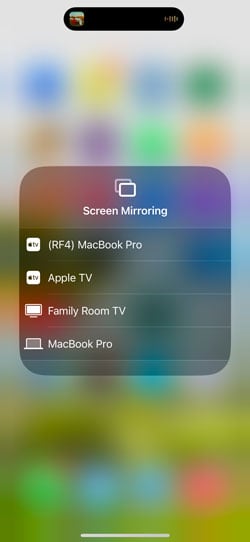
Congrats! You are now screen mirroring your iPhone. To stop mirroring, click the Screen Mirroring option in the Control Center again and select Stop Mirroring.