
Ditto is compatible with Android devices running Android 8 or later. Most recent Android devices can run Ditto Receiver. Follow the steps below to add a Ditto Android Receiver to your Ditto Account Portal.
Important: Ditto Android Receiver is not available for phones, wearable devices, or devices with 1 GB (1024 MB) of RAM or less. These devices are restricted from downloading the Ditto Receiver app from the Google Play Store.
We recommend the following minimum specifications:
- 3 GB memory
- 1 GB of available disk space — More is required for signage use
Some devices may see degraded performance based on hardware and/or Android OS version.
How to set up an Android device as a Ditto receiver
Step 1
Download the Ditto Receiver app from the Google Play Store on your Android device.
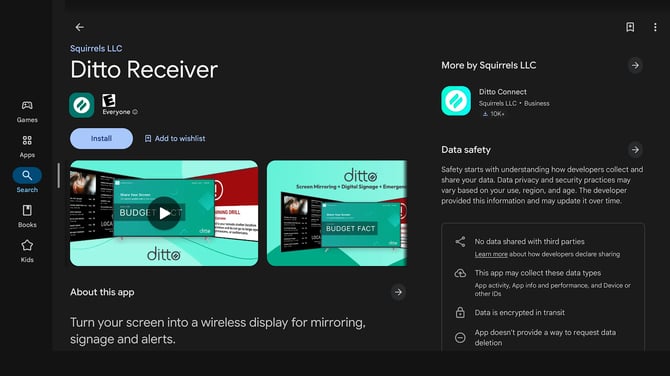
Note: The Google Play Store may look different from the image shown above depending on your Android device and OS version.
Step 2
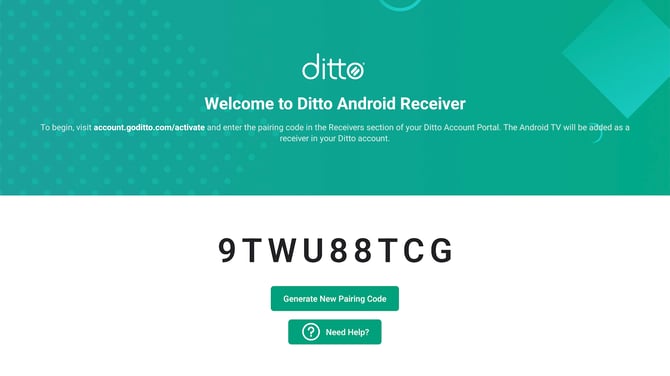
Open the Ditto receiver app. You will see a pairing code.
Step 3
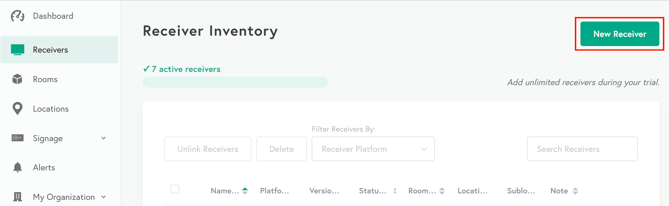
Log in to your Ditto Account Portal, click on the Receivers tab, and click New Receiver (or Add Your First Receiver if you haven’t added a receiver yet).
Step 4
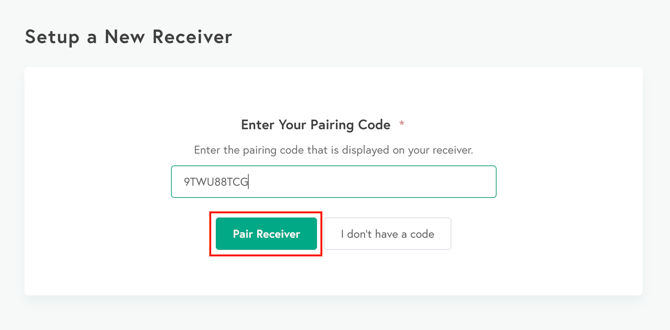
Enter the pairing code displayed on the Android device and click Pair Receiver.
Step 5
Your Android device will be paired to your Ditto account as a receiver. Next, add the receiver to a room in the Ditto Account Portal. Learn how to set up rooms.