
Overview:
Layouts let you display more than just a single piece of signage on your Ditto receiver. You can divide the screen into zones to show fixed content — like weather, date and time, or connection information — alongside your rotating digital signage items.
Layouts are managed in the Ditto Account Portal and applied to signage lists, so every item in the list plays inside the layout’s main zone while additional content appears in the other zones.
Layouts are only available for Ditto Elite plans. Ditto Basic and Premium plans can be upgraded in the Billing section of your Ditto Account Portal.
Create and apply a layout:
Step 1: Navigate to Layouts
-
Log in to the Ditto Account Portal.
- In the left-hand navigation, go to Signage > Layouts.
Step 2: Create a new layout
-
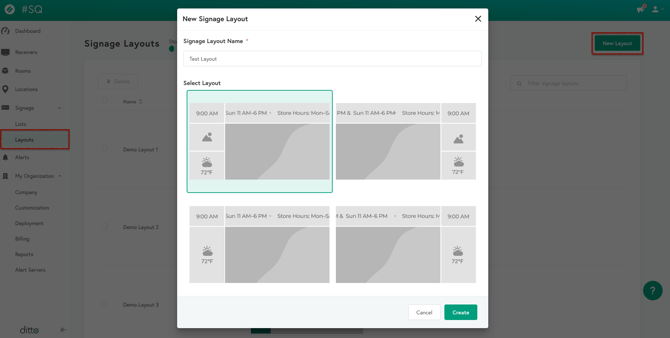
On the Layouts page, select New Layout in the top-right corner.
-
Enter a name for the layout.
-
Click Create.
Step 3: Edit the layout and zones
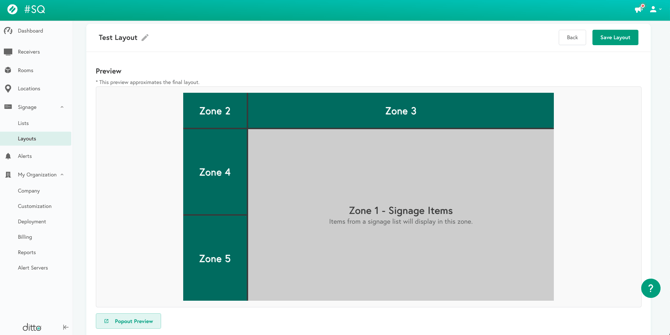
After creating the layout, you’ll see a layout preview with numbered zones.
-
Click a zone in the preview to edit that specific zone’s content and settings.
- Clicking on or scrolling to Zone 1 will allow you to add signage lists by selecting the Add Signage Lists button.
-
To return to the full preview from a zone editor:
-
Click the arrow icon at the top of the editor to navigate back to the preview, or

-
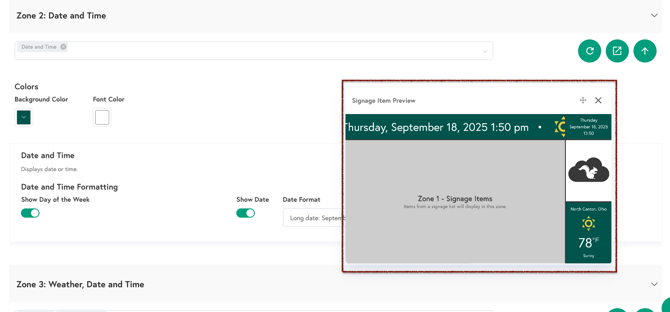
Use the popped-out preview window to follow along as you edit each zone.
-
Repeat this process for each zone you want to configure (long bar, corner box, images, weather, etc.). When you’re done, save your changes.
Step 4: Apply a layout to a signage list
This can be done two ways:
Option 1: When creating or editing your layout, clicking on or scrolling to Zone 1 will allow you add a signage list.
- In the edit/creation screen for your layout, select Zone 1 - Signage Items in the preview pane or scroll down until you reach Zone 1: Signage Lists
- Select Add Signage Lists
- Add the signage lists you want to apply your layout to
- Select Save
Option 2: Once your layout is created and configured, you can apply it to one or more signage lists.
-
In the Ditto Account Portal, go to Signage and select Lists.
-
Select the signage list you want to update.
-
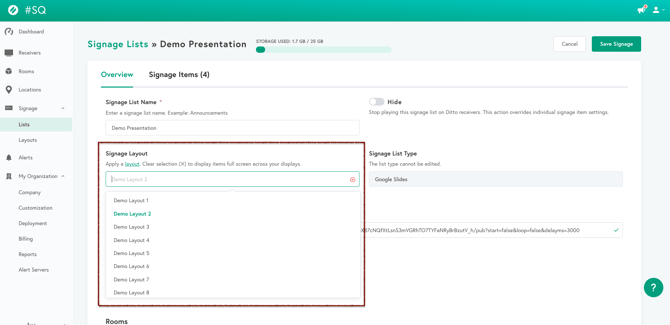
On the list details page, locate the Signage Layout dropdown.
-
Choose your desired layout from the dropdown.
-
By default, no layout is applied and signage displays full-screen.
-
-
Save the list.
Step 5: View applied layouts on the Lists page
When a signage list has a layout applied:
-
The selected layout will appear in the Lists view so you can quickly see which layout each list uses.

Example layout and zone behavior:
Below is an example layout showing most of the available zone sizes and positions. Zone numbers (except Zone 1) can change between layout options, but the behavior and options for each zone type stay the same, even if the zone number changes.
For example, in this layout the long bar is Zone 3, but in another layout the long bar might be Zone 4. In all cases, the long bar zone uses the same options (text, weather, date & time, connection info, scrolling behavior).
Example layout preview
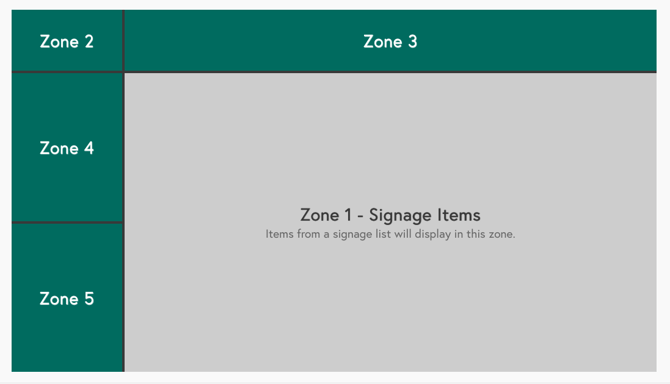
Zone behavior in the example layout:
-
Zone 1 – Always displays signage lists. Content in Zone 1 follows your existing list scheduling and order rules.
-
Zone 2 – Can display Date & Time, Connection Information, or Weather (small box format).
-
Zone 3 – Long bar zone. Options:
-
Text
-
Date & Time
-
Connection Information
-
Weather
-
Multiple options can be selected at once.
-
Content in this zone always scrolls.
-
-
Zone 4 – Image or Weather.
-
Zone 5 – Image or Weather.
Additional Information:
Layouts are applied and managed at the signage list level in the Ditto Account Portal.
-
Layouts are applied per signage list.
-
By default, no layout is applied.
-
When no layout is set, signage items in a list will appear full-screen on your displays with no zones.
-
-
A layout can be applied to multiple signage lists.
-
A layout cannot be deleted if it is currently applied to any signage list.
-
Remove the layout from all lists before deleting it.
-
-
Layouts is an Elite Plan feature and is only available to customers on Ditto Elite.
-
Users with the Signage user role cannot access or manage layouts.
-
Each layout is divided into numbered zones.
-
The main zone (Zone 1) always displays the signage list items.
-
Other zones can display specific types of content, with options varying by zone type.
-