
Overview:
Takeover lists let you temporarily replace all other digital signage in selected Ditto rooms with a single signage list.
This is useful for announcements, events, emergency messaging follow-ups or any situation where you need a fast and easy way to replace existing signage with new, temporary signage on screens in a certain space.
This feature is exclusive to Premium and Elite plans. Ditto Basic plans can be upgraded in the Billing section of your Ditto Account Portal.
Table of Contents:
- Enable a takeover list
- Schedule a takeover list
- Identify an active takeover list
- Disable a takeover list
How takeover lists work:
-
Only one takeover list can be active at a time.
-
A takeover list must be manually disabled in the Ditto Account Portal before another list can be set as a takeover list.
-
-
A takeover list overrides all other signage in its assigned rooms.
-
E.g., If enabled in seven Ditto rooms, those rooms only show this list. Signage displays in other Ditto rooms behave normally.
-
-
Alerts have highest priority and still display over takeover lists.
- If a signage list is marked hidden, the list will not display, even if it’s a takeover list.
-
Only users with User or Admin roles can enable takeovers. Signage role users can see but not toggle.
Create a takeover list:
Step 1: Open or create a signage list
-
Log in to the Ditto Account Portal and select the Signage tab.
-
Create a new signage list and add signage items, or open an existing signage list you want to use as the takeover.
Step 2: Assign the list to rooms
Make sure the signage list is assigned to the rooms where you want the takeover to occur. The Ditto receivers in these rooms will display the Takeover List while it is active.
Step 3: Enable the Takeover List toggle
-
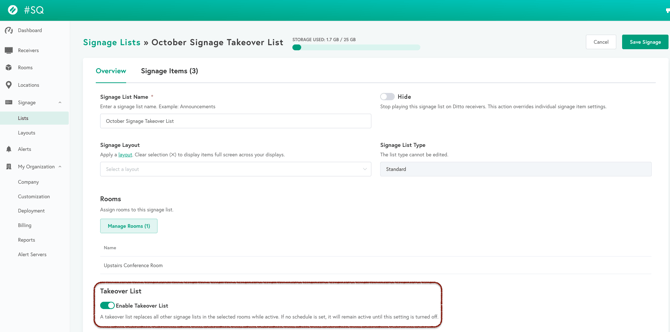
With the list open, select the Overview tab on the signage details page.
-
Scroll down to the Takeover List section.
-
Toggle Enable Takeover List to the on position.
-
-
If the list does not have a schedule, the takeover takes effect immediately and overrides all other signage in the rooms assigned to the list.
-
If the list does have a schedule configured, the takeover will only occur during the scheduled time(s).
-
Schedule a takeover list (optional)
You can combine the takeover functionality with existing list scheduling options such as date/date range, time, and day(s) of the week.
-
From the Overview tab of your signage list, scroll to the Scheduling section.
-
Toggle Scheduled to enable list scheduling.
-
Configure any of the following options as needed:
-
Date / Date Range – choose specific calendar dates for the takeover.
-
Time – set start and end times.
-
Day – choose which days of the week the takeover should run.
-
-
Select Save Signage to apply your schedule.

While the list is scheduled and the takeover toggle is enabled, the takeover list will override all other signage only during the specified schedule. Outside of that schedule, regular signage resumes in those rooms.
Identify an active takeover list:
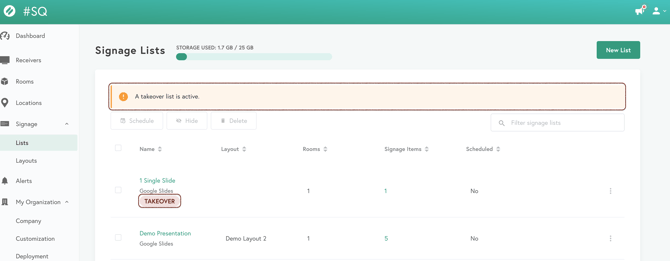
When a takeover list is in effect, you’ll see two visual indicators on the Signage Lists page:
-
An alert banner at the top of the page stating that a takeover list is active.
-
A Takeover badge next to the signage list that has takeover enabled.
The badge appears as long as the list is configured as a takeover. The banner appears only while the takeover is currently active (immediately or during its scheduled window).
Disable a takeover list:
When you are finished using a Takeover List, you can disable it at any time.
Step 1: Open the Takeover List
-
Log in to the Ditto Account Portal and select the Signage tab.
-
On the Signage Lists page, locate the list with the Takeover badge and select it to open the list details.
Step 2: Turn off the takeover toggle
-
On the Overview tab, scroll to the Takeover List section.
-
Toggle Enable Takeover List to the off position.

Once the toggle is turned off:
-
The takeover ends, and normal signage resumes in the affected rooms.
-
The takeover list becomes a regular signage list again. It will continue to display content in any rooms the list is assigned to, alongside other assigned signage lists.
If you no longer want that list to appear in those rooms, you can:
-
Remove the list from the room(s).
-
Hide the signage list.
-
Delete the signage list entirely.
After disabling the takeover, you can enable a different signage list as the new Takeover List if needed.
Additional Information:
Scheduling behavior:
-
Without a schedule:
-
Takes effect immediately when enabled.
-
Runs until manually turned off.
-
-
With a schedule:
-
Only overrides during the scheduled time.
-
Normal signage plays outside the schedule.
-
Must still be manually turned off to switch takeover lists.
-
-
If the takeover list is empty, the receiver shows the lobby screen during its active time.
Visual indicators:
-
Banner: Shows at the top of the Lists page while the takeover is active.
-
If unscheduled, it always shows.
-
If scheduled, it shows only during the scheduled time.
-
-
Badge: Always appears on the takeover list for visibility.
-
Sorting: Takeover lists appear at the top of the Lists page by default (unless the view is sorted).