
Overview:
Properly disconnecting Ditto Connect from a Ditto receiver after each mirroring session ensures clean transitions between classrooms or meeting spaces. It prevents lingering sessions, connection conflicts, or “stuck” receivers when users quickly move from one Ditto room to another.
Why Proper Disconnection Matters
-
Ensures the Ditto Receiver releases your device completely before the next connection.
-
Prevents failed “room-to-room” connections when moving between Ditto-enabled spaces.
-
Reduces potential network and discovery conflicts.
-
Keeps receivers ready for the next user without manual intervention or reboots.
In This Article:
General Best Practice:
After finishing your presentation or class:
-
Stop mirroring before closing your device or app.
-
Return to the Ditto Connect app (bring it to the front if minimized).
-
Click or tap Stop Sharing.
-
Wait for the confirmation that mirroring has stopped before moving to another room or receiver.
Windows:
-
Bring the Ditto Connect window to the front of your screen.
-
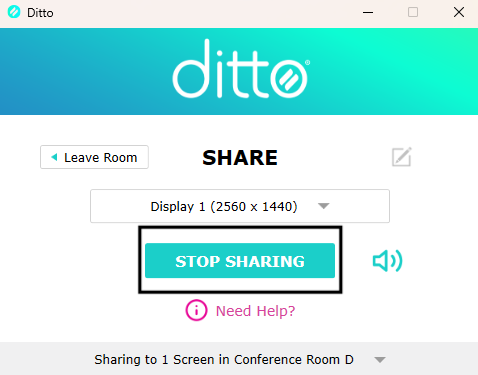
Click Stop Sharing in the app.
-
If using the temporary Ditto Connect app, closing the app also ends mirroring and deletes the temporary file.
-
-
Wait until your display returns to normal and the ditto receiver returns to its room code screen.
-
You can now safely connect to another room.
Tip: Avoid closing your laptop or switching Wi-Fi networks before disconnecting.
macOS
-
Locate and bring the Ditto Connect app to the foreground (Dock or Cmd+Tab).
-
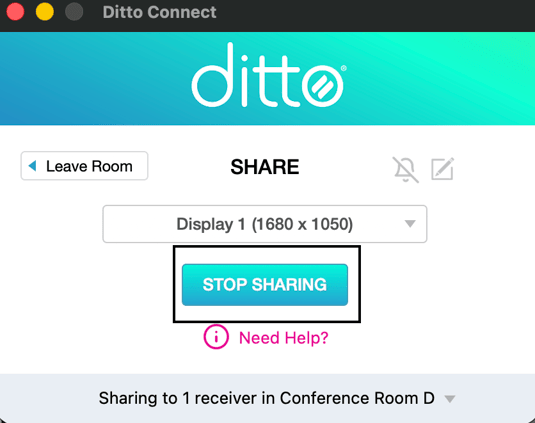
Click Stop Sharing to disconnect.
-
Verify the Ditto Receiver screen shows the room code again before quitting the app.
-
Close the Ditto Connect app if you’re done mirroring.
Note: If you used a temporary Ditto Connect app, it will automatically remove itself after closing.
iOS / iPadOS
-
Return to the Ditto Connect app.
-
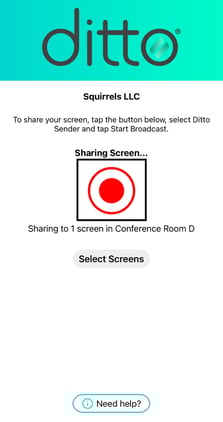
Tap the red Screen Broadcast icon.
-
-
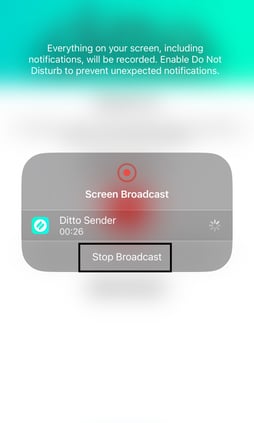
Select Stop Broadcast when prompted.
-
This immediately ends your mirroring session.
-
-
You can now close the Ditto Connect app or wait a few seconds before connecting to another Ditto Receiver.
Alternative method:
You can also open Control Center, tap the Screen Broadcast button, and select Stop Broadcast when you see Ditto Sender listed.
Tip: Always stop broadcasting manually before locking your iPad or leaving the classroom to ensure a full disconnect.
Android
-
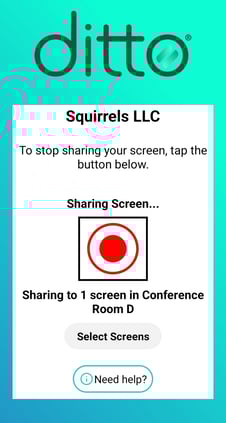
Return to the Ditto Connect app.
-
Tap red Screen Broadcast icon.
-
Wait until the app confirms mirroring has ended and the receiver shows its idle screen.
-
Exit the app if you’re done presenting.
Tip: Always use the in-app method of disconnecting before switching Wi-Fi networks or classrooms.
Chromebook or Chrome Browser
-
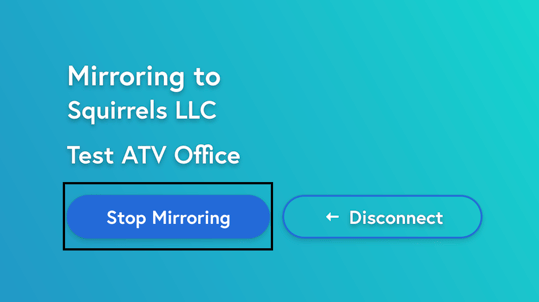
Return to the browser tab or window with the connect.goditto.com page.
-
Click Stop Mirroring.
-
Wait until your screen returns to normal and the Ditto Receiver shows its room code again.
Tip: Avoid closing your Chromebook lid or disconnecting Wi-Fi before stopping mirroring to ensure a clean disconnect.
Room-to-Room Transitions (Instructor Workflow)
For instructors moving quickly between rooms:
-
At the end of class, open the Ditto Connect app and select Stop Sharing.
-
Wait for the receiver to revert to its room code screen.
-
Open the Ditto Connect app again in the next classroom.
-
Enter the new room code and connect as usual.
This ensures the first receiver fully releases your session before the next begins.