
Overview:
This article explains how to configure Centegix to send alerts to Ditto-enabled displays. You will learn how to configure Centegix to send alert open and alert close events to Ditto using a Ditto Push Alert Server.
Ditto supports automated alerts from Common Alerting Protocol (CAP) alert systems. When a CAP alert is received, Ditto displays the alert on the assigned Ditto receivers. Ditto alerts take over the entire screen, even if digital signage is playing or someone is wirelessly mirroring to the display.
Note:
- Alert servers are available on Ditto Premium and Elite plans.
- Ditto only supports automated alerts integrated with a CAP server.
- This integration uses a Push configuration. Ditto generates a secure Push URL, and Centegix sends alert data to that URL using POST.
Before you begin
Before configuring Centegix, create a Push Alert Server in the Ditto Account Portal.
- Log in to the Ditto Account Portal.
- Go to My Organization > Alert Server.
- Select New Server.
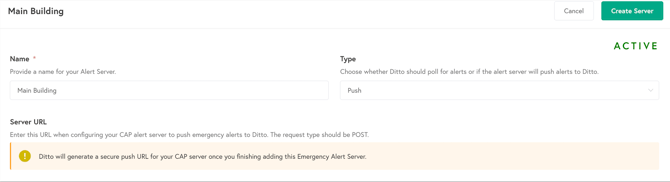
- Enter a name for the alert server.
- Select Push as the server type.
- Configure the alert preferences, such as:
- Default Expiration
- Alert Statuses
- Alert Severities
- Alert Urgencies
- Alert Certainties
- Alert Types
- Assign the Ditto rooms and/or locations that should receive alerts from this server.
- Select Create Server.
- Copy the generated Push URL.
You will enter this Ditto Push URL in Centegix when creating the Alert Open and Alert Close integrations.
Important: The Default Expiration setting determines how long Ditto displays a CAP alert when the alert itself does not include an expiration time. If Centegix sends a cancelled alert, Ditto dismisses it immediately regardless of the Default Expiration setting.
Configure Centegix
Step 1: Open the Centegix Admin Panel
- Log in to Centegix.
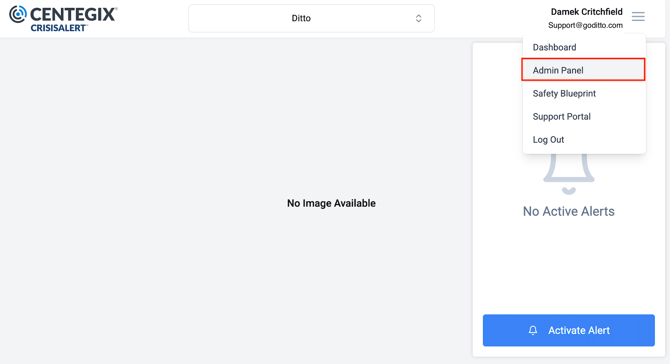
- Open the menu in the top-right corner.
- Select Admin Panel.
Step 2: Open IP Integrations
Go to IP Integrations in the Centegix Admin Panel.
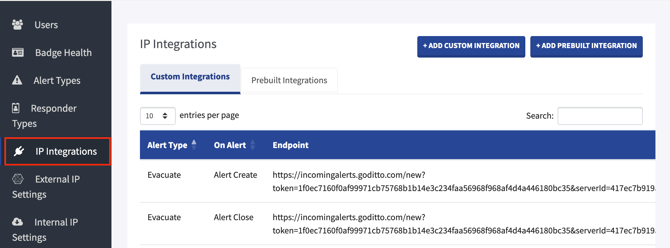
This is where you will configure the integrations that send Alert Open and Alert Close events to the Ditto Push Alert Server.
Important:
- Create one Alert Open integration and one Alert Close integration for each Alert Type.
- If you have multiple Alert Types, an Alert Open and Alert Close integration will need to be created for each type of alert that should display in Ditto.
- If you have multiple Ditto Push Alert Servers, create integrations for each applicable Ditto Push URL.
- Centegix requires each field to be entered manually.
Create the Alert Open integration
- Select Add Custom Integration.
- Set the trigger to On Alert Open.
- Select the appropriate Alert Type.
- Enter the Ditto Push URL generated by the Ditto Account Portal.
- Set Type of action taken to "External POST Request (Web Request)".
- Set Type of object to "XML".
- In What Object should be used for POST, paste the Alert Open payload below.
- Select Create Integration.
Alert Open payload
<?xml version="1.0" encoding="utf-8" standalone="yes"?>
<alert xmlns="urn:oasis:names:tc:emergency:cap:1.2">
<identifier>{alert_id}</identifier>
<sender>CENTEGIX</sender>
<sent>{alert_created_at_iso_offset}</sent>
<status>Actual</status>
<msgType>Alert</msgType>
<scope>Public</scope>
<info>
<language>en-US</language>
<category>Safety</category>
<event>Alert</event>
<responseType>{alerttype_name}</responseType>
<urgency>Immediate</urgency>
<severity>Extreme</severity>
<certainty>Observed</certainty>
<senderName>{openedby_email} - {openedby_firstname} {openedby_lastname}</senderName>
<headline>{alerttype_name} at {location_name_display}</headline>
<description>{alerttype_intercom_tts_message}</description>
</info>
</alert>
Create the Alert Close integration
- Select Add Custom Integration.
- Set the trigger to On Alert Close.
- Select the same Alert Type used for the Alert Open integration.
- Enter the Ditto Push URL generated by the Ditto Account Portal.
- Set Type of action taken to "External POST Request (Web Request)".
- Set Type of object to "XML".
- In What Object should be used for POST, paste the Alert Close payload below.
- Select Create Integration.
Alert Close payload
<?xml version="1.0" encoding="utf-8" standalone="yes"?>
<alert xmlns="urn:oasis:names:tc:emergency:cap:1.2">
<identifier>{alert_id}</identifier>
<sender>Centegix</sender>
<sent>{alert_close_time}</sent>
<status>Actual</status>
<msgType>Cancel</msgType>
<scope>Public</scope>
<references>{alert_id},{alert_created_at}</references>
<info>
<language>en-US</language>
<category>Safety</category>
<event>Centegix Alert</event>
<responseType>{alerttype_name}</responseType>
<urgency>Immediate</urgency>
<severity>Extreme</severity>
<certainty>Observed</certainty>
<expires>{alert_close_time}</expires>
<headline>{alerttype_name}</headline>
<description>{alerttype_intercom_tts_message}</description>
</info>
</alert>
Test the integration
After the Ditto Push Alert Server and Centegix integrations are configured, send a test alert from Centegix.
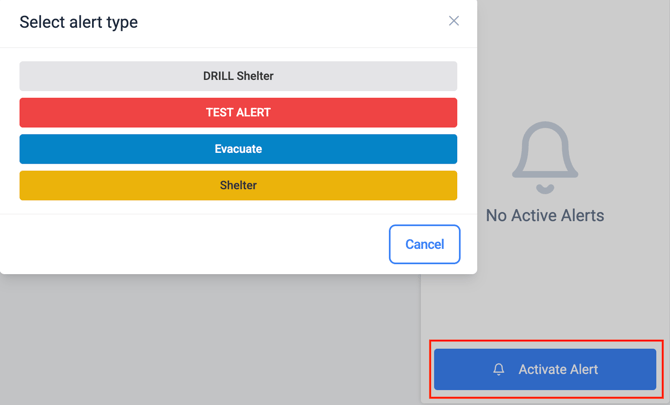
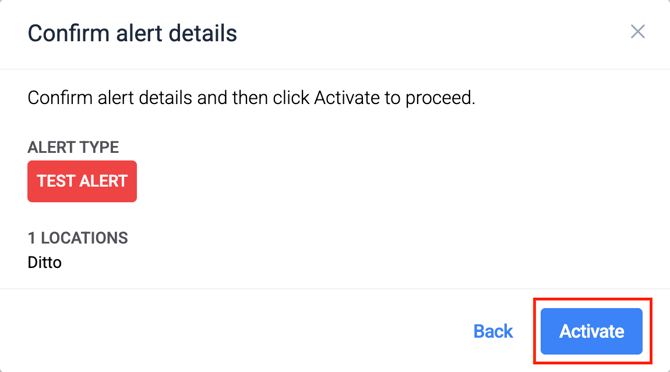
Then open the alert server in the Ditto Account Portal and review the Recent Alerts section to confirm Ditto is receiving and processing alerts from Centegix.
The Recent Alerts section can help verify details such as:
- Alert type
- Category
- Severity
- Sender
- Sent time
- Status
You can also select an alert from the list to open the Emergency Alert Details view. This page shows the full alert information Ditto received, including the identifier, sender, title, severity, urgency, certainty, created time, expiration time and whether the alert is currently active.
Troubleshooting checklist
If alerts do not appear on Ditto receivers, confirm the following:
- The Ditto Alert Server is set to Push.
- The correct Ditto Push URL was copied into Centegix.
- Centegix is sending alerts using POST.
- The Centegix integration type is set to External POST Request (Web Request).
- The object type is set to XML.
- Both Alert Open and Alert Close integrations were created.
- The integrations were created for the correct Alert Type.
- The selected Ditto rooms and/or locations are assigned to the Alert Server.
- The alert status, severity, urgency, certainty and type are allowed by the Ditto Alert Server preferences.