
Overview:
This article explains how to create an alert server in the Ditto Account Portal so Common Alerting Protocol (CAP) alerts can automatically display on your assigned Ditto receivers.
Note:
- Alert servers are available on Ditto Premium and Elite plans.
- Ditto only supports automated alerts integrated with a Common Alerting Protocol (CAP) server.
- Ditto alerts take over the entire screen, even if digital signage is playing or someone is wirelessly mirroring to the display.
Before you begin
Determine whether your alert provider will use a Poll or Push configuration. This can usually be determined by either your alert provider needing a URL from Ditto (Push) or they provide their own URL to be used (Poll).
Step 1: Open Alert Server settings
Log in to the Ditto Account Portal and navigate to My Organization > Alert Server.
Step 2: Select New Server
Select New Server from the left side of the portal.
Step 3: Enter a name
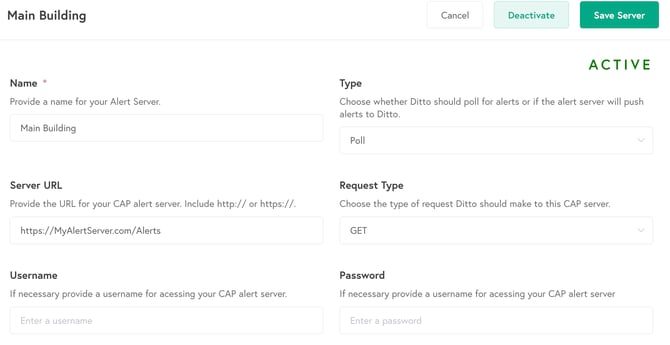
Enter a name for your alert server. This can be any name that helps you identify the CAP server in the Ditto Account Portal.
Step 4: Select the server type
Choose either Poll or Push.
If you select Poll:
-
Enter the Server URL for your CAP alert server.
-
The Request Type in the Ditto Account Portal will be set to GET.
-
If your alert provider requires authentication, enter the Username and Password fields as well.
If you select Push:
Ditto will generate a secure push URL for your CAP server after you finish creating the alert server.
After the server has been created, copy the generated URL and enter it into your alert provider’s configuration. Your alert provider should use POST when sending alerts to Ditto.
Step 5: Configure alert preferences
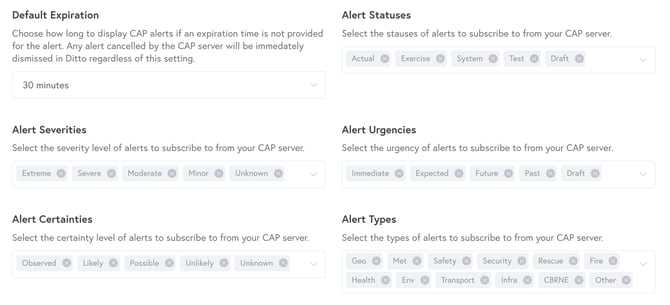
Use the remaining fields to choose which CAP alerts will be displayed on your assigned room receivers. These settings let you control the alert content Ditto will subscribe to and display, such as:
- Default Expiration
- Alert Statuses
- Alert Severities
- Alert Urgencies
- Alert Certainties
- Alert Types
Ditto’s alerting experience is designed to let admins choose the severity of alerts and send them to the rooms or locations that are impacted.
Important: The Default Expiration setting determines how long Ditto will display a CAP alert when the alert itself does not include an expiration time. If the CAP server sends a cancelled alert, Ditto will dismiss it immediately regardless of the Default Expiration setting.
Step 6: Assign Rooms and/or Locations
Select the Room(s) and/or Location(s) that should receive alerts from this server.
Selecting a Location will send alerts to the Ditto receivers assigned to that Location, similar to how Ditto alerts can be sent to all receivers within a selected Location.
If a room is already part of a selected location, it will only be alerted once. All sublocations of a selected location will also receive alerts from this server.
Step 7: Create the server
Select Create Server.
Step 8: Finish Push configuration if applicable
If you created a Push server, Ditto will now provide the generated push URL. Copy that URL into your alert provider’s configuration to complete the integration.
Test the Alert Server
After your alert server has been created, it is a good idea to send a few test alerts from your alert provider to make sure everything is working as expected.
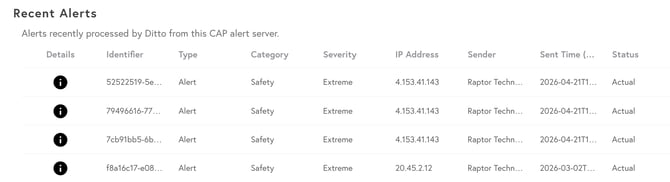
Open the alert server in the Ditto Account Portal and review the Recent Alerts section to confirm Ditto is receiving and processing alerts from your CAP server. This section can help you quickly verify details such as the alert type, category, severity, sender, sent time and status.
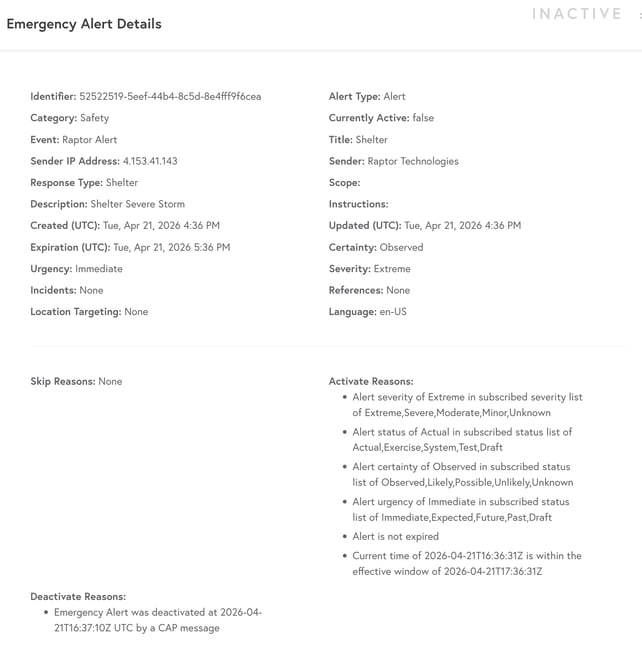
You can also select an alert from the list to open the Emergency Alert Details view. This page is useful for confirming the full alert information Ditto received, including the identifier, sender, title, severity, urgency, certainty, created time, expiration time and whether the alert is currently active.
Additional information
Ditto supports both manual/custom alerts and automated CAP-based alerts. CAP integrations are intended to help organizations get messages out faster to their Ditto-enabled displays.